

Reading an Issue
In the Governance tab’s issues table, click View issue on any row to open the detail panel for that issue.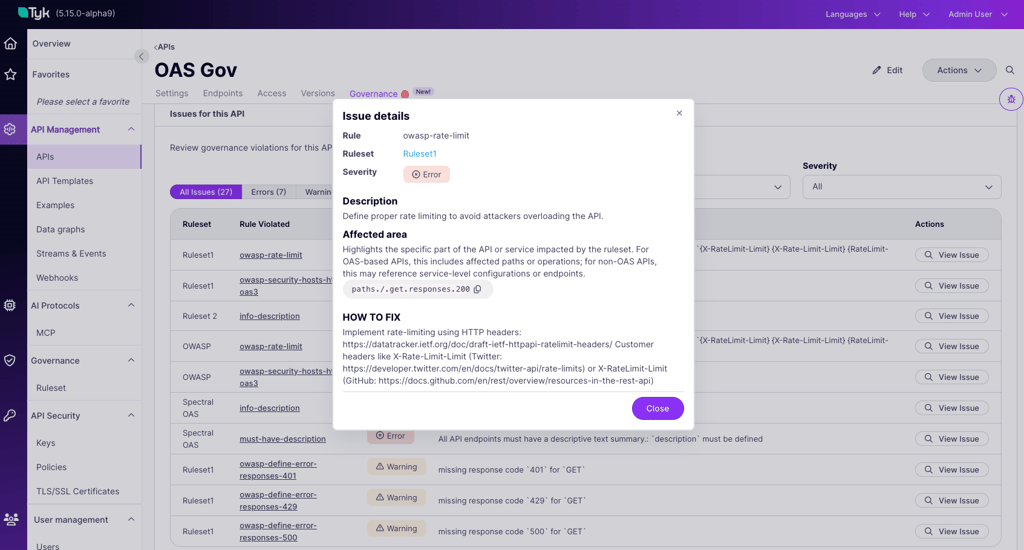
- The rule that fired: its name, severity, and remediation priority.
- Affected area: the specific path in the service specification where the rule failed, for example
paths./orders.post.security. - Problem if not fixed: the risk, in plain language.
- How to fix: concrete remediation guidance, authored as part of the rule.
Remediation Guidance
When a rule fails, Tyk Governance surfaces three pieces of information against the affected service:- The specific rule that failed, including its name, severity, and the location in the service specification where the failure was detected.
- A problem description explaining the risk in plain language.
- “How to fix” guidance, authored as part of the rule itself, providing concrete instructions for resolving the issue.
howToFix text. See Configure a Ruleset.
Prioritizing by Severity
Not every issue needs fixing before you can ship.- Error: fix these. A single Error-severity issue makes the service non-compliant, and these are the only issues that trigger a Deployment Warning.
- Warn: advisory. Worth fixing, but they do not affect compliance status and never gate a save.
- Info: informational. Address them opportunistically.
The Deployment Warning
Each ruleset carries a per-ruleset Deployment Warning toggle that controls whether non-compliance produces a soft warning at deploy time.- Off (default): The ruleset evaluates the service and surfaces compliance status in the Governance tab, but no warning appears when you deploy the service to the gateway. The service can be activated normally regardless of compliance.
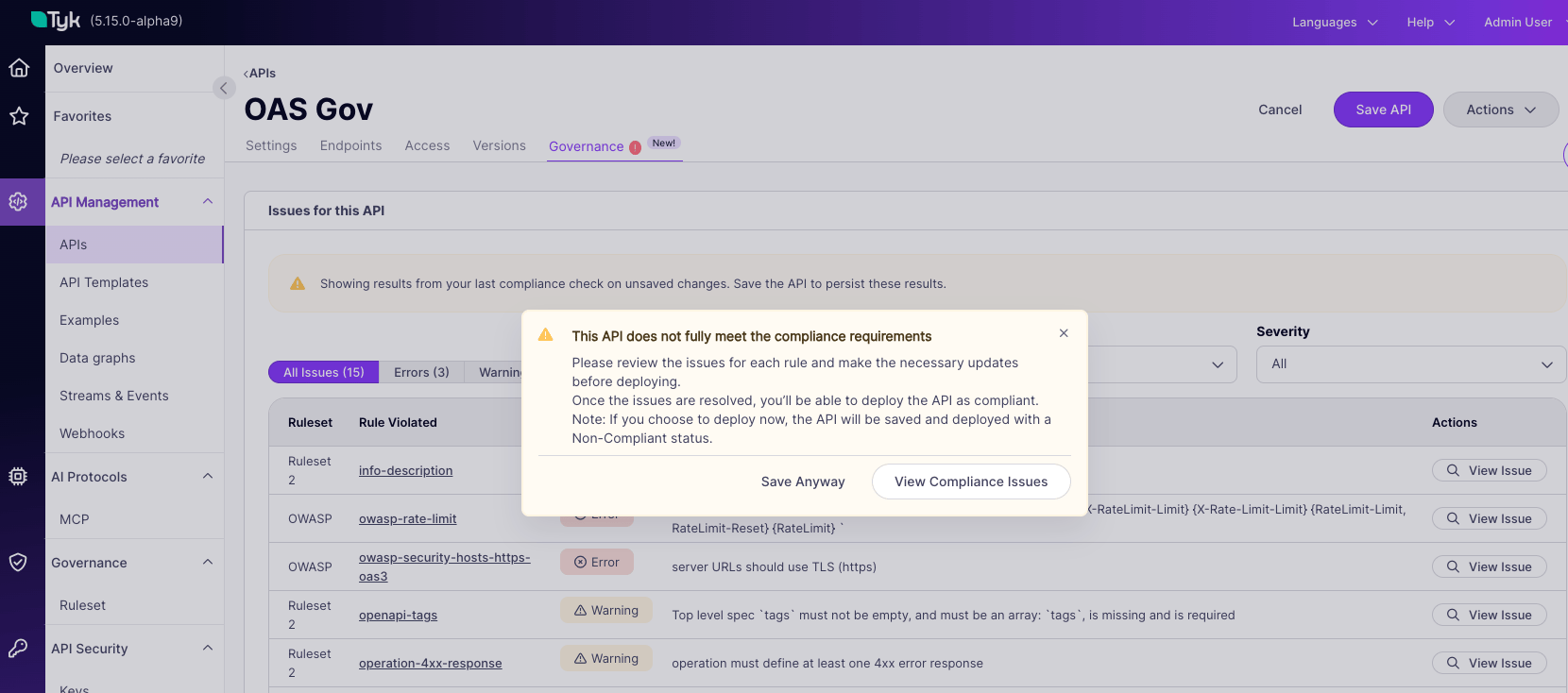
- On: When you deploy a non-compliant service to the gateway, a warning appears before it goes live.
When the Warning Appears
The flow, when at least one ruleset evaluating the service has the toggle on:- The API owner saves a change that would make the service non-compliant, or activates a non-compliant service for the first time.
- A warning appears stating that this service does not fully meet the compliance requirements.
- Two options are presented.
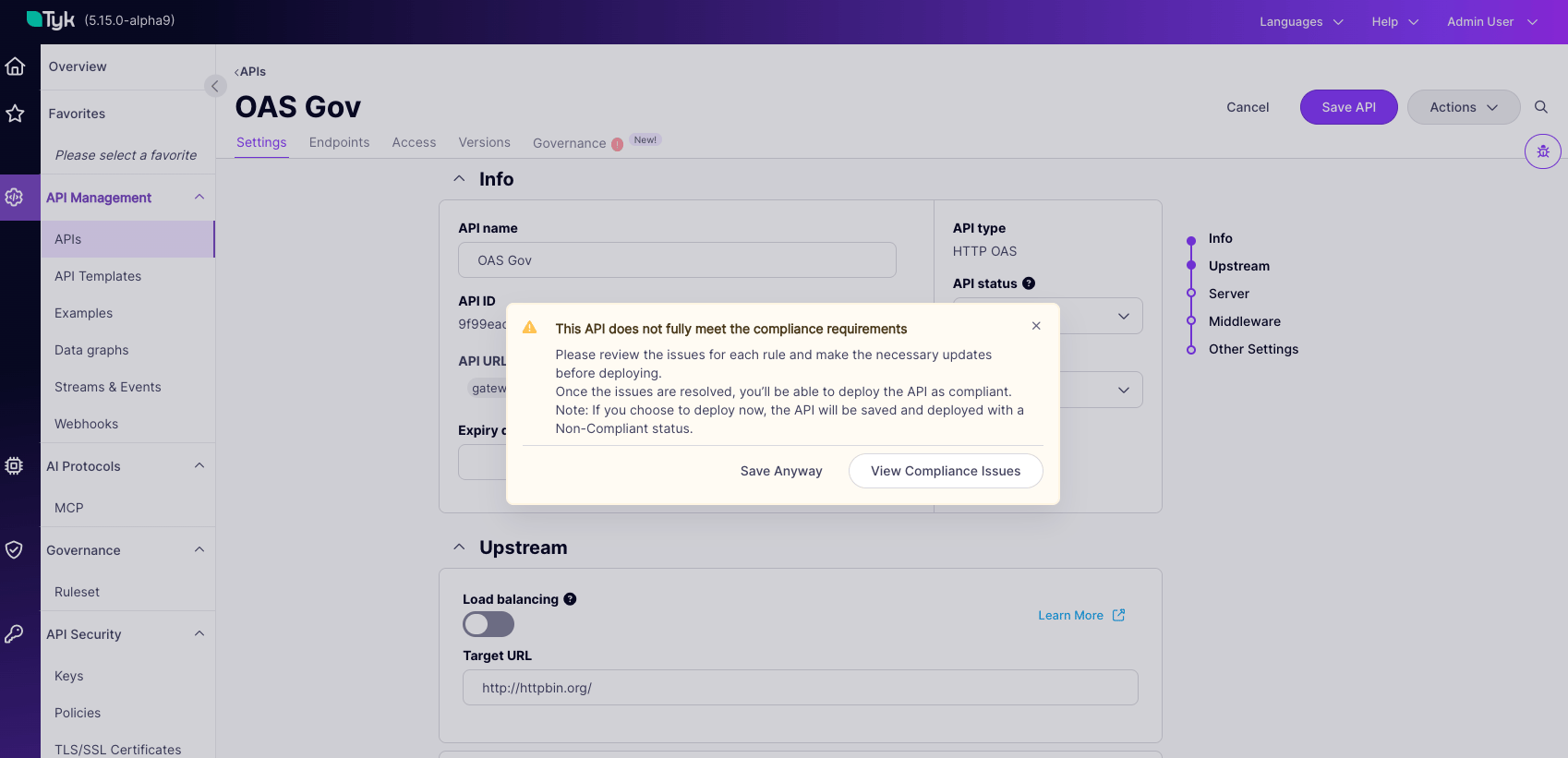
Save Anyway or View Compliance Issues
Neither option is a failure state. Save Anyway exists because governance in Tyk Dashboard is advisory by design, and shipping a service with known warnings is sometimes the right call. What it does not do is hide the result: the service stays flagged as non-compliant until the issues are resolved.
Verifying a Fix
After applying a fix, save the service. Saving triggers a re-evaluation if the service is active, and the Governance tab updates with the new status, usually within a second. To confirm the fix:- Re-open the Governance tab and check the status banner’s error count has dropped.
- Filter the issues table to Errors and confirm the specific rule no longer appears.
- If the ruleset that produced the issue had a Deployment Warning, save once more. No dialog means the service is compliant against every gating ruleset.
When a Ruleset Change Breaks You
Your service can become non-compliant without you touching it. This is expected behavior, not a fault. Re-evaluation runs whenever a linked ruleset changes, not only when you save your API. So a service can flip to non-compliant because:- A ruleset gained a new rule.
- An existing rule’s severity was raised to Error.
- A ruleset was newly linked to one of your service’s API Categories.